The main window
The parts of the main window: the folder list, the message list, the reading pane, the toolbar and the status bar.
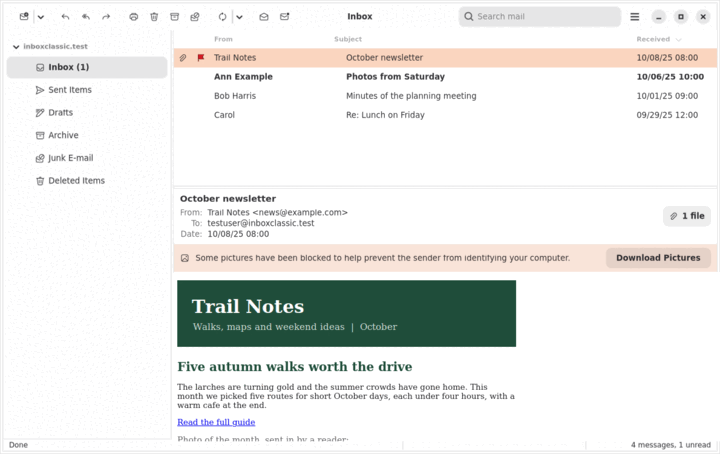
- The folder list, on the left, starts with your Inbox and Flagged, then your other folders. With two or more accounts, All Inboxes comes first, followed by the combined views of sent messages and drafts. Next are Flagged and the accounts with their remaining folders. A folder with unread mail is bold, with the number of unread messages after its name.
- The message list, at the top right, has the messages of the selected folder. Unread messages are bold. Click a column heading to sort by it, and click it again to reverse the order.
- The reading pane, below the list, shows the selected message.
- The toolbar, at the top, has the commands you use most, such as Create Mail, Reply and Send/Recv, and the search box.
- The status bar, at the bottom, counts the messages and says what Inbox Classic is doing, including the last problem it had.
Drag the borders between the parts to change their sizes.
To make room for the messages, hide the folder list: choose View > Folder List or press F9. The sidebar button at the left end of the toolbar hides it and brings it back. While it is hidden, the folder button beside it lists the folders.
The menus, such as File and View, are in Main Menu at the right end of the toolbar. Right-click a message, a folder or an account for the commands that work on it.
A collapsed folder’s unread count includes messages in its hidden subfolders. The same applies to a collapsed account. Junk E-mail and Deleted Items are excluded. Click an account’s name to open or close its folders.
Inbox Classic reopens the folder or combined view you last used. It selects the last viewed message, or its conversation, if still listed. If there is no saved view to restore, it opens the first account’s Inbox, or All Inboxes when you have several accounts.
To open this help, choose Help > Contents or press F1. In another window, the same key opens the topic about that window.