Classic on the outside. Modern where it counts.
Folders on the left, messages on top, the reading pane below. A fast, simple mail program for Windows, Mac and Linux with the layout you already know, and none of the clutter.
Free and open source, from the makers of Nodemailer
Windows 10 and 11
macOS 26 or newer, on Apple silicon
Ubuntu 26.04 or newer, x86-64 · ARM64 Install with apt · Arch / Omarchy
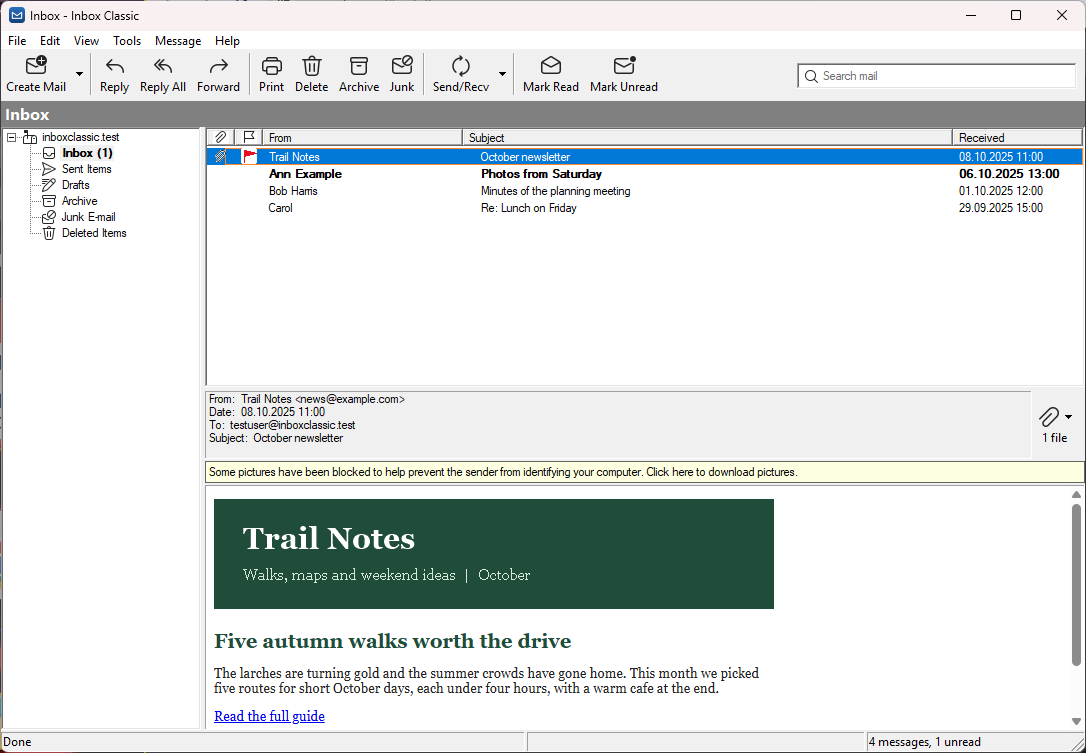
Just your mail
No feeds, no built-in assistant, no ads, no account with us. A small program that reads and writes your mail, and does it well.
Fast, even offline
Mail shows up the moment it arrives, with a notification and a count on the taskbar or the Dock. It is kept on your computer too, so it opens instantly, even offline.
Private by design
Pictures that tell senders you opened their mail stay blocked until you ask, and scripts in messages never run. No analytics, no sign-up, nothing sent to us.
Replies without clutter
Long quoted histories fold away, so you see what the sender actually wrote, and your reply starts on top.
Your AI agent, on your terms
There is no AI in Inbox Classic. But if you already use Claude, Cursor or another agent that speaks MCP, you can let it clear out newsletters, find that invoice or draft a reply, with you in charge of every step.
-
You let each agent in
The first time an agent connects, you choose what it may do (read, organize, write drafts, send) and which accounts it sees.
-
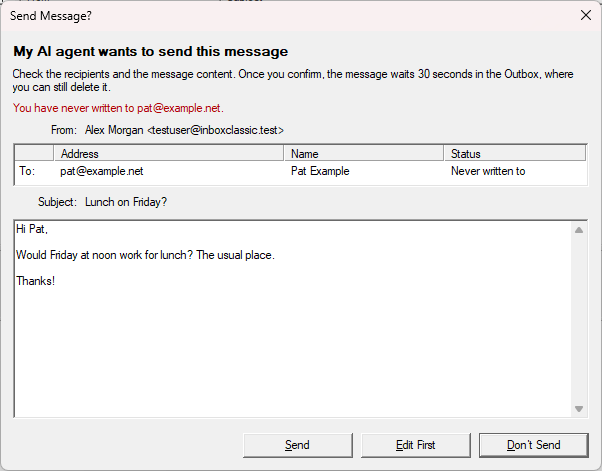
Nothing goes out without your yes
Every message it wants to send is shown to you first, every address spelled out and new ones marked, and waits 30 seconds in the Outbox.
-
See it, undo it
Changes show in the window as they happen. Tools > AI Agents lists everything each agent did, with Undo.
-
Already use an agent? Tools > AI Agents > How to Connect an Agent gives you the lines to add to its settings.
Set up in a minute
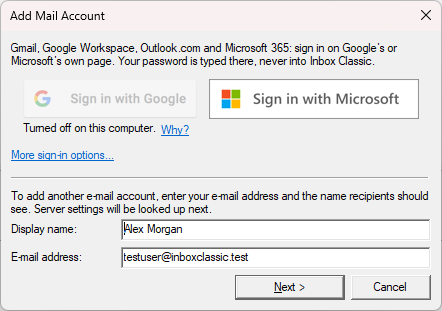
Outlook.com and Microsoft 365 sign in on Microsoft's own page, so your password never touches the app. For Gmail or any other IMAP address, type your name and address; the servers are looked up for you. All your accounts share one folder tree.
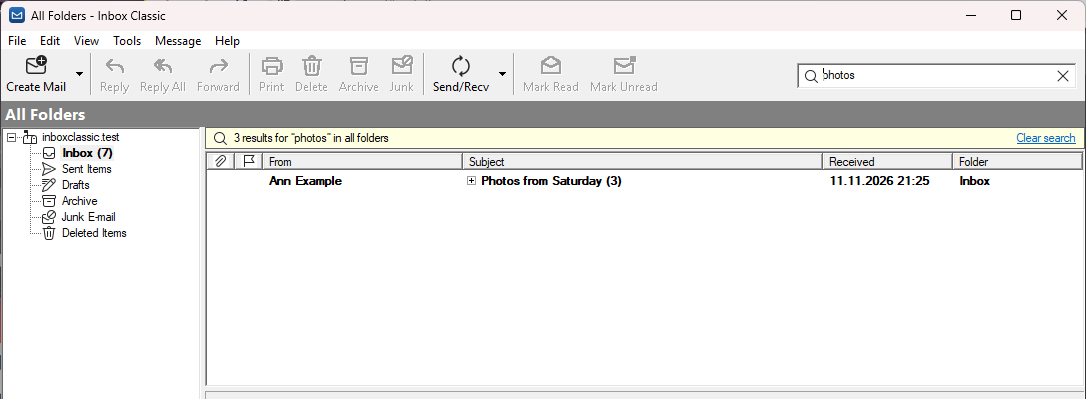
Find any message
Type in the search box and the list shows what matches, from every folder, with the folder each message is in. Try
from:anna, is:unread or has:attachment.
The search runs on your computer, so it is instant and works offline.
Every Inbox in one place
With more than one account, All Inboxes lists the new mail of all of them together, and under it each account's Inbox has a row of its own. Give an account a short name like Gmail or Work, and the folder list, the rows and the title use it.
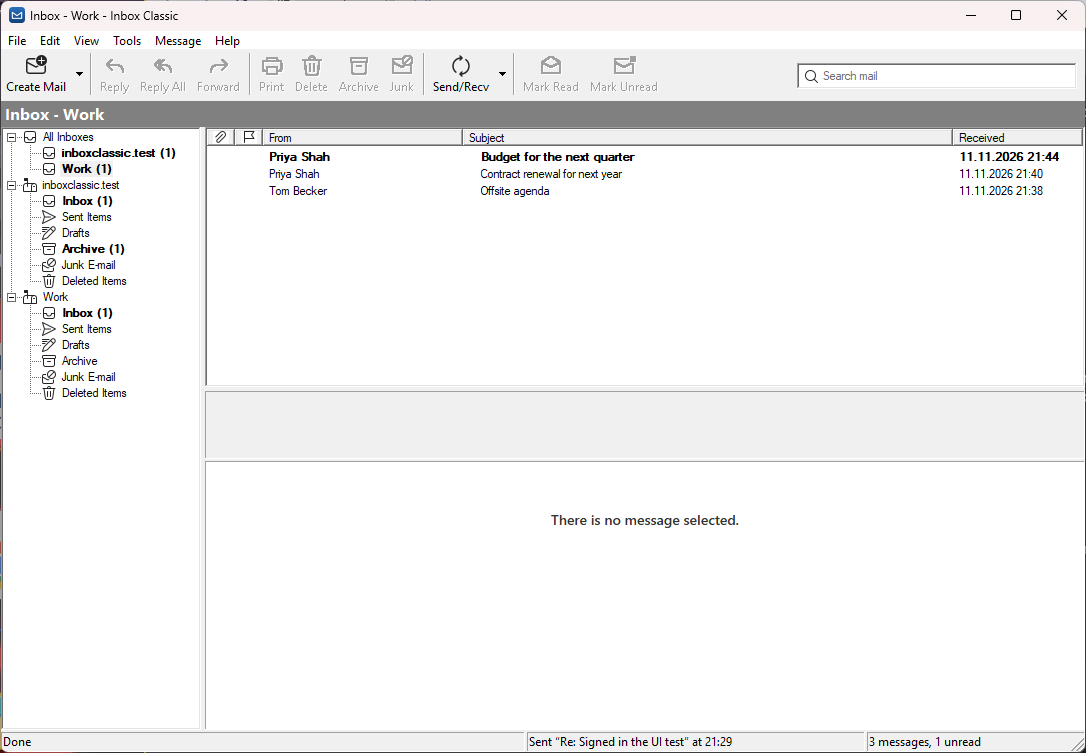
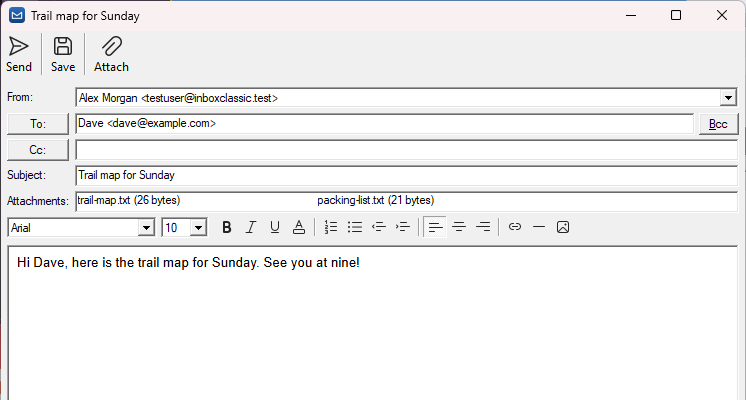
Write the way you always have
Formatting when you want it, plain text when you don't, and a signature for each account. Addresses complete as you type. Drag files in to attach them. If you are offline, the message waits in the Outbox and goes by itself.
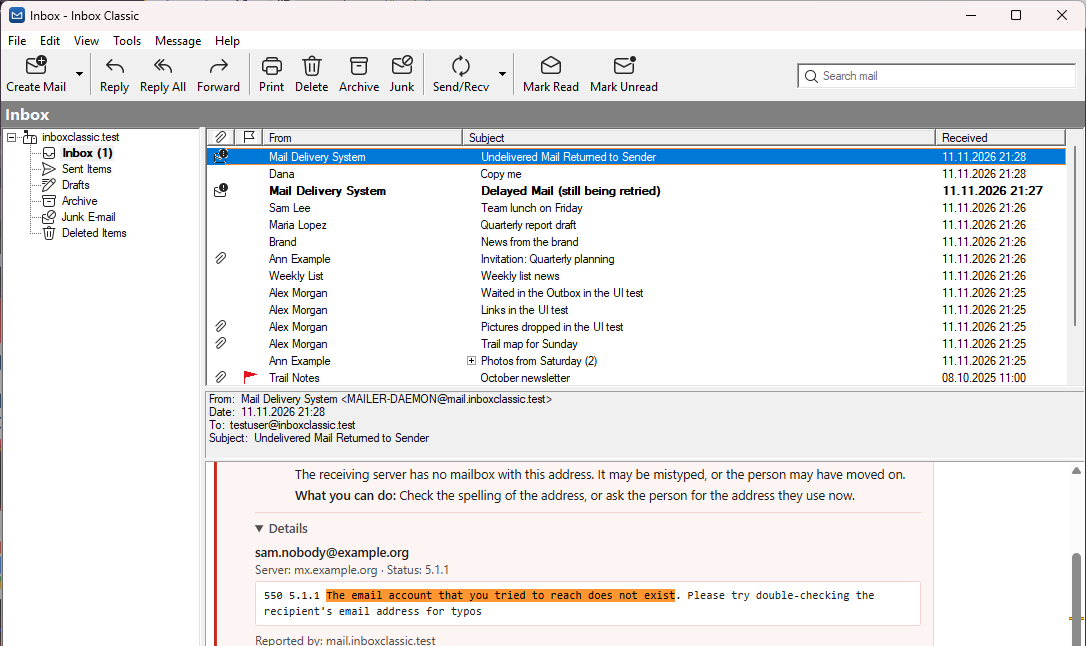
Bounces in plain words
When a message can't be delivered, the returned notice says what went wrong for each address, such as one that does not exist or a mailbox that is full, and what you can do about it. Bounces and delays are marked in the list, so you see them at a glance.
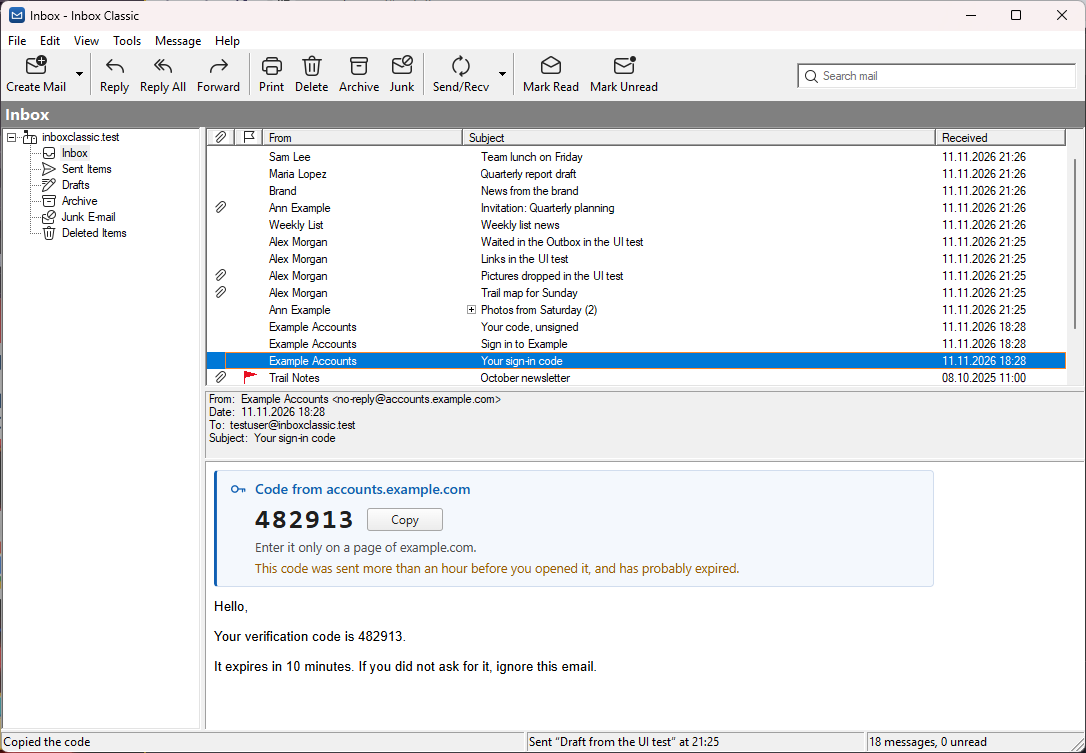
Sign-in codes, ready to copy
A message with a sign-in or verification code shows it in large type above the message, with the site it is for and a Copy button. It only appears when your mail provider confirms that site sent the message, so a code in a fake message is not offered. If you like, the new mail notification can show the code too.
Questions
Is it really free?
Yes. Inbox Classic is open source under the MIT license, made by Postal Systems, the makers of Nodemailer and EmailEngine. The source is on GitHub.
Does it work with Gmail?
Yes, with a Google app password, or by signing in through a Google app of your own. One-click Sign in with Google comes once Google has finished reviewing Inbox Classic.
Does Inbox Classic send my mail to an AI?
No. There is no AI in Inbox Classic. If you connect an AI agent you already use, it reads only the accounts you allow, and anything it wants to send needs your yes first. No agent gets in until you say yes to it, and Tools > AI Agents shows everything they did.
Does it work with Microsoft 365 and Exchange?
Outlook.com and Microsoft 365 accounts sign in with Microsoft, on Microsoft's own page. Other Exchange servers work when IMAP is turned on for them.
Where is my mail kept?
On your mail server, as always, with a copy on your computer for reading offline. Passwords are kept in your system's own password store: the Credential Manager on Windows, the keychain on the Mac, GNOME Keyring on Linux.
Which systems and languages?
Windows 10 and 11, macOS 26 or newer on Apple silicon, Ubuntu 26.04 or newer, Arch Linux and Omarchy. Each looks the way its system does: classic Windows controls on Windows, AppKit on the Mac and GTK on Linux, with the same layout and features. It speaks English, German, Estonian, French and Spanish, following your system's language.
How do I get updates on Ubuntu?
Add our apt repository, and new versions come with your system's own updates. In a terminal:
sudo wget -qO /etc/apt/
sudo apt update && sudo apt install inbox-classic
It is signed with the Postal Systems release key, the same key that signs each release's
hashes.txt. Already installed the .deb? This updates it in place.
How do I install it on Omarchy or Arch Linux?
Download the package of the latest release and install it with pacman, which brings GTK, libadwaita and WebKitGTK from Arch's own repositories. On a new Omarchy, run its Update first. In a terminal:
Intel / AMD (x86-64)
curl -LO https://github.com/
sudo pacman -U InboxClassic-x86_64.pkg.tar.zst
ARM (aarch64)
curl -LO https://github.com/
sudo pacman -U InboxClassic-aarch64.pkg.tar.zst
Run the same two commands again to update. The packages are listed in each release's signed
hashes.txt. Inbox Classic is on its way into Omarchy's own package repository, which will bring
updates with Omarchy's.
Try Inbox Classic
Free, no sign-up, and your mail stays where it is.
Windows 10 and 11
macOS 26 or newer, on Apple silicon
Ubuntu 26.04 or newer, x86-64 · ARM64 Install with apt · Arch / Omarchy

Building an app that works with email?
EmailEngine, from the team behind Inbox Classic and Nodemailer, is a self-hosted email API for Gmail, Microsoft 365 and IMAP. It connects to the same accounts Inbox Classic does, so your app can read and send their mail through one REST API and webhooks.